

Guide

How to delete similar photos on iPhone

To delete similar photos on iPhone, scan your library in PhotoCleanse and open a group of similar shots. Keep the photo marked BEST or pick another, select the rest and confirm in iOS. Deleted photos stay in Recently Deleted for 30 days.

Updated

Download on the App Store

Free group-by-group cleanup
You confirm before deleting.

PhotoCleanseDuplicate Photos
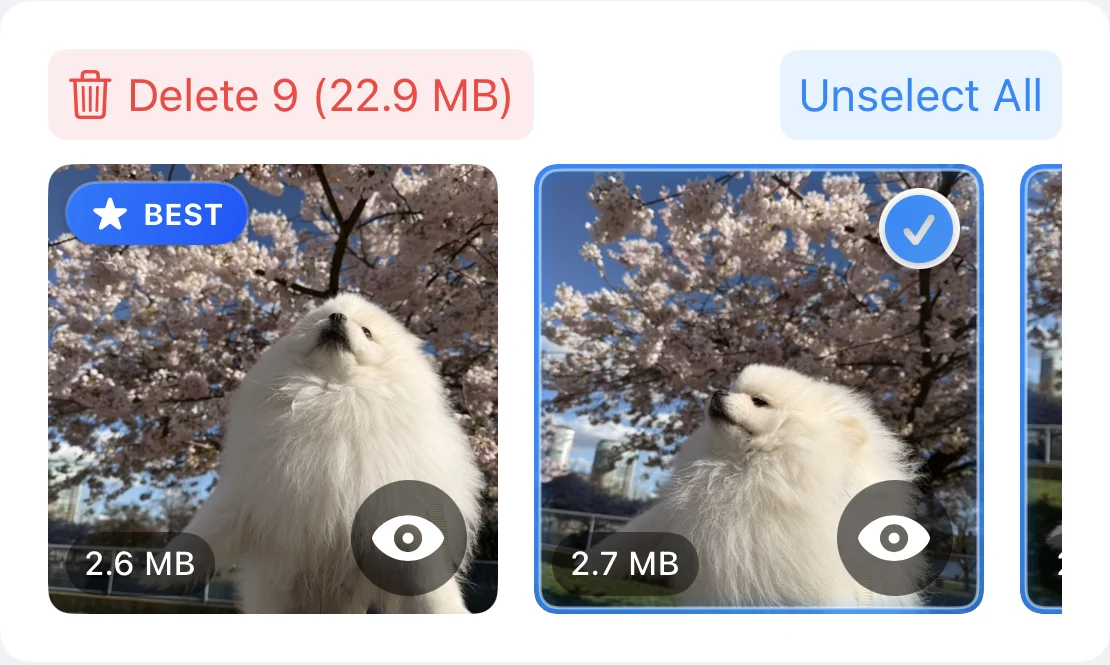
A group of similar photos with a BEST recommendation, a selected photo and a button to delete the selected photos
A group with the suggested BEST photo unselected and a similar shot selected.

Before you start

Install PhotoCleanse and give it full access to your photo library. It needs that access to compare your photos, and the comparison runs on your iPhone. Your photos aren’t uploaded.

Scanning never deletes anything. Photos are removed only after you select them and confirm.

Step by step

Keep one shot, delete the rest

  1. 01

    Scan your library

    Open Duplicate Photos. PhotoCleanse checks the photos stored on your iPhone, starting with recent ones, and shows groups as it finds them. You can work on a group while the scan continues.

  2. 02

    Open a group

    A group shows duplicates and similar shots side by side, each with its file size. One photo is marked BEST, the app’s suggestion for which to keep. A heart marks your favorites.

  3. 03

    Compare the details

    Tap the eye button on a photo to open it full screen. Pinch to zoom, swipe to the next photo in the group, and check each photo’s dimensions and file size.

  4. 04

    Change the selection

    Tap a photo to select it for deletion. A checkmark appears, and tapping again unselects it. To keep only one shot, tap Select All for the group, then tap the photo you want to keep. BEST is only a suggestion, so you can select it and keep a different shot.

  5. 05

    Delete and confirm

    Tap Delete on the group. The button shows how many photos are selected and their total size. iOS then asks you to confirm. If you cancel, nothing is deleted.

Free covers one group at a time with Balanced matching. With Pro, you can delete selected photos across groups in one step and switch to More Matches or Exact Matches. Select All Duplicates leaves each group’s BEST photo and your favorites unselected, and nothing is deleted until you review and confirm.

After you delete

Recently Deleted and iCloud Photos

PhotoCleanse deletes through Apple Photos, so Apple’s usual rules apply.

You can recover photos for 30 days

Deleted photos go to the Recently Deleted album. Apple keeps them there for 30 days, then deletes them permanently. To get one back, open Recently Deleted under Utilities in Photos, unlock it with Face ID or Touch ID, select the photo and choose Recover.

iCloud Photos syncs deletions

If you use iCloud Photos, a photo you delete on your iPhone is also deleted on your other devices signed in with the same Apple Account.

Storage comes back later

Photos in Recently Deleted still use space on your iPhone, although Apple doesn’t count them toward iCloud storage. You get the space back when Apple removes them after the recovery period, or when you delete them from that album. After that, you can’t recover them. Apple notes that if you exceed your iCloud storage limit, photos you delete are removed right away and can’t be recovered.

Sources: Apple Support, Delete photos on your iPhone or iPad and Manage your iCloud storage on your Apple device. Keep another backup of photos you can’t replace.

Apple’s built-in Duplicates album

On iOS 16 and later, the Photos app has a Duplicates album under Utilities. It lists photos and videos that Photos identifies as duplicates, and it appears only when Photos finds some. Tap Merge to combine a set into one photo. Photos moves the other copies to Recently Deleted.

PhotoCleanse works differently. It groups duplicates and similar shots, suggests a photo to keep, and lets you choose exactly which photos to delete. You can use both.

Read Apple’s guide to merging duplicate photos

Questions about deleting similar photos

For help with the app, contact support

What’s the difference between duplicate and similar photos?

Duplicates are copies of the same photo, such as an image saved twice. Similar photos are separate shots of the same moment, like retakes. PhotoCleanse groups both, so you can compare them side by side and keep the one you want.

Does iPhone find similar photos on its own?

On iOS 16 and later, the Photos app has a Duplicates album for photos and videos it identifies as duplicates. Separate shots of the same moment usually aren’t included. PhotoCleanse groups those similar shots too.

Can I delete similar photos in bulk?

Free covers one group at a time. With Pro, you can delete selected photos across all groups in one step. Select All Duplicates leaves each group’s BEST photo and your favorites unselected, and iOS asks you to confirm before anything is deleted.

Will deleting similar photos free up iCloud storage?

With iCloud Photos on, a photo you delete on your iPhone is also deleted in iCloud and on your other devices. Apple doesn’t count photos in Recently Deleted toward iCloud storage, but they use space on your iPhone until they’re removed.

Why does PhotoCleanse miss some similar photos?

The default Balanced matching finds most duplicates while avoiding photos that only look alike. With Pro, open Options in Duplicate Photos and choose More Matches. Photos with no copy on your iPhone are skipped until they’re downloaded.

Try PhotoCleanse
on your iPhone

Review and delete one group at a time for free.

Download on the App Store

For iPhone · Optional Pro subscription

QR code for PhotoCleanse's App Store URL

Scan with your iPhone camera

Opens the App Store